Steps for Accessibility
 On April 24, 2024, the Department of Justice issued new accessibility requirements for websites and mobile apps. All digital platforms must meet Webe Content Accessibility Guidelines (WCAG) 2.1 Level AA to ensure they're accessible to people with disabilities.
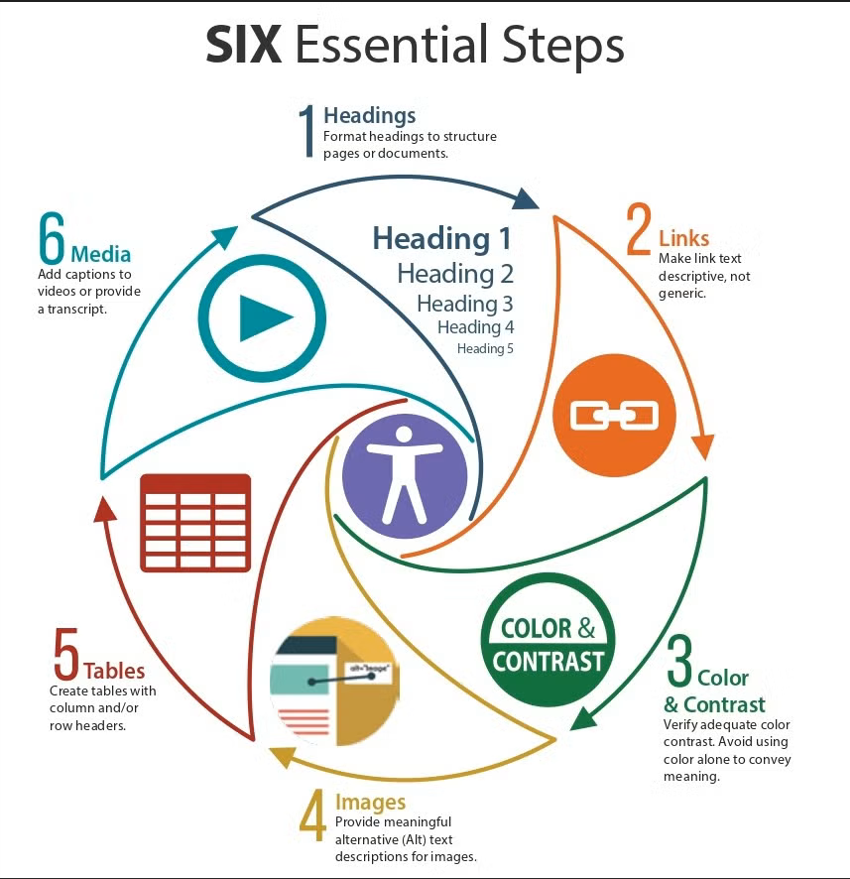
Please review these six essential steps to ensure your courses meet these accessibility requirements.
The Instructional Design and Technology Team is happy to provide assistance in making your courses accessible. Please refer to this Make Your Canvas Course Accessible* checklist for further information.
-
- Use Headings
Format headings to structure pages or documents
Section headings must be identifiable by screen reader software
Select the text of your heading, select the "paragraph" dropdown, and select the proper heading level
- Describe links
Make link text descriptive, not generic
Links should clearly indicate what they are linking to
Links do not use phrases like "Click here," this link," "follow the link," etc
Do not provide the URL directly in the text
- Consider Color Contrast
Verify adequate color contrast. Avoid color alone to convey meaning
Color should be paired with other textual means
Content and background should have high color readability
Large text should have a contrast of 4.5:1. Checkers are available in Canvas
- Label Images
Provide meaning alternative (Alt) text descriptions for images
Images that are informative have descriptive alt text explaining the "why" of the content
Images that are decorative have the "Decorative Image" box selected
Avoid using the file name as the alt text
- Tables
Create tables with column and/or row headers
Header rows and columns help screen reader users locate and identify information within a table
Provide a summary as a table caption to help the screen reader user know what the table contents will be
Tables are used for data, not layout
- Media
Add captions to videos or provide a transcript
All of these steps can be completed with just a few clicks inside your Canvas course by using the Cidilabs Accessibility checker. Contact Instructional Design and Technology for more assistance.
Note: An asterisk (*) indicates archived PDFs, which may have limited accessibility.